10 Best Video Editing Software for Beginners and Professionals
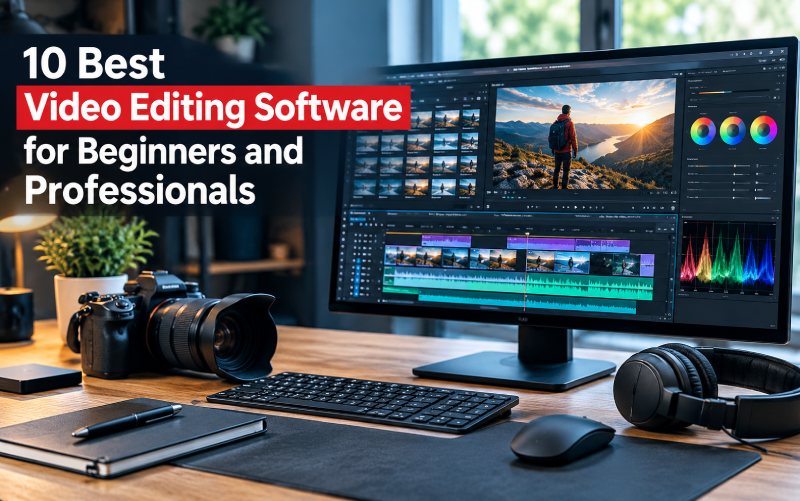
Video content is an important part of YouTube channels, social media pages, online education, and digital marketing. However, creating engaging videos requires more than recording footage. The right video editing software helps you cut unwanted scenes, improve audio, add transitions, correct colors, create captions, and export videos in the format you need.
With so many video editing tools available, choosing the right one can be difficult. Some editors are free and beginner-friendly, while others offer advanced features for professional filmmaking and commercial projects.
In this guide, we explore 10 popular video editing software options, explain their key features, and help you choose a tool based on your experience, budget, and content goals.
What Is Video Editing Software?
Video editing software is a computer program or application that allows users to modify video footage and combine different media elements into a finished video.
Depending on the tool, you may be able to trim clips, arrange footage on a timeline, add music, insert subtitles, apply visual effects, adjust colors, and export videos in different resolutions.
These tools are useful for:
- YouTube videos and tutorials
- Instagram Reels, Facebook Reels, and TikTok videos
- Business promotions and product demonstrations
- Educational videos and online courses
- Interviews, documentaries, and short films
- Family videos and personal projects
The best software depends on the type of content you create and how much control you need over the editing process.
10 Best Video Editing Software to Consider
1. Adobe Premiere Pro
Adobe Premiere Pro is a professional video editing application designed for creators who need detailed control over their projects. It is commonly considered by video editors, production teams, and businesses working with complex video content.
Key features:
- Multitrack timeline editing
- Audio editing and color adjustments
- Transitions, effects, and titles
- Tools for captions and dialogue-based workflows
- Integration with other creative applications
Best for: Professional editors, agencies, filmmakers, and experienced YouTubers.
Potential drawback: A subscription is required for continued use, and beginners may need time to learn its interface.
2. DaVinci Resolve
DaVinci Resolve combines video editing with color correction, visual effects, motion graphics, and audio post-production. Its free version makes it worth considering for creators who want advanced capabilities without immediately paying for a professional editor.
Key features:
- Timeline-based video editing
- Advanced color grading
- Visual effects and motion graphics tools
- Audio post-production
- A paid Studio version with additional capabilities
Best for: Creators who want a powerful editor for professional-looking videos.
Potential drawback: Its extensive tools can feel complicated to new users, and demanding projects may require a capable computer.
3. Final Cut Pro
Final Cut Pro is Apple’s professional video editing software for compatible Mac systems. It offers an organized editing workflow and is designed to work closely with Apple’s hardware and software environment.
Key features:
- Timeline-based editing
- Color correction and effects
- Audio controls
- Multicamera editing workflows
- Support for high-resolution projects
Best for: Mac users, filmmakers, and professional content creators.
Potential drawback: It is not a native Windows editing option, so it is unsuitable for users who need a Windows-based editor.
4. Filmora
Filmora focuses on making video editing approachable for beginners and intermediate creators. Its interface and ready-made effects can help users create polished videos without learning every advanced editing technique.
Key features:
- Drag-and-drop editing
- Titles, transitions, and effects
- Audio and color adjustments
- Templates and creative assets
- AI-assisted features, depending on the version
Best for: Beginners, small businesses, and social media creators.
Potential drawback: Some features, assets, or export options may require a paid plan. Check the current plan details before purchasing.
5. CapCut
CapCut is popular among short-form video creators because it offers tools for vertical videos, captions, effects, and social media content. Available features vary between its mobile, desktop, and web experiences.
Key features:
- Short-form video editing
- Text overlays and captions
- Filters, transitions, and effects
- Vertical video workflows
- Templates and automated editing features
Best for: Reels creators, TikTok users, and beginners producing social media videos.
Potential drawback: Certain tools and export options may be limited by platform, region, or subscription plan. Review privacy settings before uploading sensitive footage.
6. Shotcut
Shotcut is a free, open-source video editor that supports a range of editing tasks. It is a useful option for users who want desktop editing without committing to a paid subscription.
Key features:
- Timeline editing
- Video and audio filters
- Transitions and text overlays
- Resolution and format options
- Windows, macOS, and Linux support
Best for: Budget-conscious users, students, and creators who prefer open-source software.
Potential drawback: Its interface may take time to understand, particularly for users who have never edited videos before.
7. OpenShot
OpenShot is another free, open-source video editor designed for straightforward editing. It can help users assemble clips, add titles, apply transitions, and create basic videos.
Key features:
- Drag-and-drop media handling
- Multiple editing tracks
- Titles and transitions
- Clip trimming and resizing
- Basic animation and keyframe controls
Best for: Beginners, students, and simple home or educational projects.
Potential drawback: Performance can vary with the size and complexity of a project. Test it with your own footage before using it for a demanding production.
8. Clipchamp
Clipchamp is a browser-based video editor with a desktop experience available on supported systems. It can be convenient for people who want to create videos without adopting a complex professional editing workflow.
Key features:
- Browser-based editing
- Templates and stock media options
- Text, transitions, and audio tools
- Screen and webcam recording features
- Export options based on the current plan
Best for: Beginners, educators, and users making simple marketing or social media videos.
Potential drawback: Some premium features depend on the plan, and browser-based editing can be affected by device performance and internet access.
9. Lightworks
Lightworks is a video editing application aimed at users who need more than basic trimming and transitions. Its available tools and export capabilities depend on the edition being used.
Key features:
- Timeline editing
- Media organization
- Effects and transitions
- Audio controls
- Different plans for different editing needs
Best for: Aspiring editors and creators interested in learning a more advanced workflow.
Potential drawback: Users should compare the free and paid editions carefully to confirm that the required export formats and features are included.
10. VideoProc Converter
VideoProc Converter is a video-processing tool that includes editing and conversion functions. It may suit users who frequently resize, convert, or make basic changes to video files.
Key features:
- Video conversion
- Trimming and cropping
- Resizing and compression
- Support for selected high-resolution formats
- Video-processing tools for everyday tasks
Best for: Users who need conversion and basic editing in one workflow.
Potential drawback: It may not replace a full professional editor when a project requires complex timelines, detailed effects, or advanced collaboration.
Video Editing Software Comparison
| Software | Free option | Best suited for |
|---|---|---|
| Adobe Premiere Pro | No permanent free version; trial availability may vary | Professional editing |
| DaVinci Resolve | Yes | Advanced editing and color grading |
| Final Cut Pro | Trial availability may vary | Mac-based professionals |
| Filmora | Limited free access may be available | Beginners and creators |
| CapCut | Yes, with paid features | Short-form social videos |
| Shotcut | Yes | Free desktop editing |
| OpenShot | Yes | Basic editing |
| Clipchamp | Yes, with plan-dependent features | Browser-based editing |
| Lightworks | Free edition available | Learning advanced workflows |
| VideoProc Converter | Trial or limited access may vary | Video conversion and basic edits |
Availability, pricing, free-plan limits, and features can change. Check each provider’s official website before choosing a plan.
How to Choose the Best Video Editing Software
1. Identify Your Main Purpose
Start by deciding what you want to create. A person editing short vertical videos may need quick captions and templates, while a filmmaker may require detailed color grading, audio controls, and multitrack editing.
Choose software that matches your most frequent projects rather than paying for features you will rarely use.
2. Set a Realistic Budget
Free software can be sufficient for many personal projects and social media videos. Paid plans may provide extra effects, advanced features, collaboration options, or additional export capabilities.
Before subscribing, check whether the plan includes everything you need and whether the payment is monthly, annual, or a one-time purchase.
3. Check Device Compatibility
Make sure the editor works with your operating system and hardware. High-resolution footage, multiple video tracks, and complex effects can demand more memory and processing power.
If possible, test the software using a short sample project before moving your entire workflow to it.
4. Review Editing and Export Features
Look for practical features such as:
- Accurate trimming and timeline editing
- Audio cleanup and volume control
- Captions and text overlays
- Color correction and stabilization
- Vertical and widescreen video formats
- Export resolution and frame-rate options
- Watermark restrictions and file-format support
Check export settings carefully if you publish to platforms with specific requirements.
5. Consider the Learning Curve
An editor with hundreds of advanced features is not automatically the best choice for every creator. Beginners may work faster with a simple interface, while experienced editors may prefer deeper control over footage, sound, and effects.
A free trial or a small test project can help you understand the workflow before making a commitment.
Free vs. Paid Video Editing Software: Which Is Better?
Free video editing software is a practical starting point for students, hobbyists, and creators who want to control their expenses. Tools such as Shotcut, OpenShot, and DaVinci Resolve’s free version offer different levels of editing capability without requiring an initial software purchase.
Paid software may be more suitable when you need a specific professional workflow, premium assets, additional effects, team features, or capabilities that are unavailable in the free edition.
Neither option is automatically better. Compare the features you actually use, the time required to edit, export limitations, and the total cost.
Tips for Creating Better Videos
The editor is only one part of producing a good video. These habits can improve the final result:
- Organize your footage: Sort clips, audio files, and graphics before editing.
- Create a clear sequence: Remove unnecessary pauses and arrange clips in a logical order.
- Prioritize audio: Keep dialogue clear and background music at a suitable level.
- Use effects carefully: Too many transitions can distract viewers from the message.
- Add readable captions: Use clear fonts, good contrast, and appropriate placement.
- Export for the platform: Check aspect ratio, resolution, file size, and audio before publishing.
- Keep a backup: Save the original footage and project files in case you need to make changes later.
Frequently Asked Questions
What is the best video editing software for beginners?
Filmora, CapCut, Clipchamp, and OpenShot are options worth exploring for beginners. The right choice depends on your device, editing needs, preferred workflow, and budget.
What is the best free video editing software?
DaVinci Resolve, Shotcut, and OpenShot are worth considering. DaVinci Resolve provides a broader professional workflow, while Shotcut and OpenShot offer open-source desktop editing. Compare their features against your computer’s capabilities.
Which video editor is best for YouTube?
Adobe Premiere Pro, DaVinci Resolve, Final Cut Pro, and Filmora can all suit YouTube creators. Choose based on your editing experience, computer, project complexity, and budget.
Can I edit videos without downloading software?
Yes. Browser-based tools such as Clipchamp and supported web versions of other editors let users work online. Their features and performance depend on the service, device, and internet connection.
Is free video editing software good enough for professional videos?
It can be. The result depends on the editor’s capabilities, your skills, the footage, and the project requirements. Some free tools provide advanced editing features, although paid editions may offer additional capabilities.
What should I check before buying a video editor?
Review the current price, supported operating systems, export quality, watermark rules, included features, system requirements, and cancellation terms. If a free trial is available, test it with a typical project first.
Conclusion
The best video editing software is the one that fits your content, skill level, device, and budget. Adobe Premiere Pro and Final Cut Pro are worth considering for professional workflows, while DaVinci Resolve offers a capable free starting point for users who want advanced tools. Filmora, CapCut, and Clipchamp can be useful for many creator-focused projects, and Shotcut or OpenShot are alternatives for people seeking free desktop editing.
Compare the available features and test your preferred editor before committing to a paid plan. With the right workflow and consistent practice, you can produce clearer, more engaging videos for social media, YouTube, business, or personal projects.

You may also like ...